
Managing your website effectively starts with accessing your cPanel. For users hosted with providers like Polanhost LLC, logging into cPanel through the client dashboard is the safest and easiest method—especially for beginners.
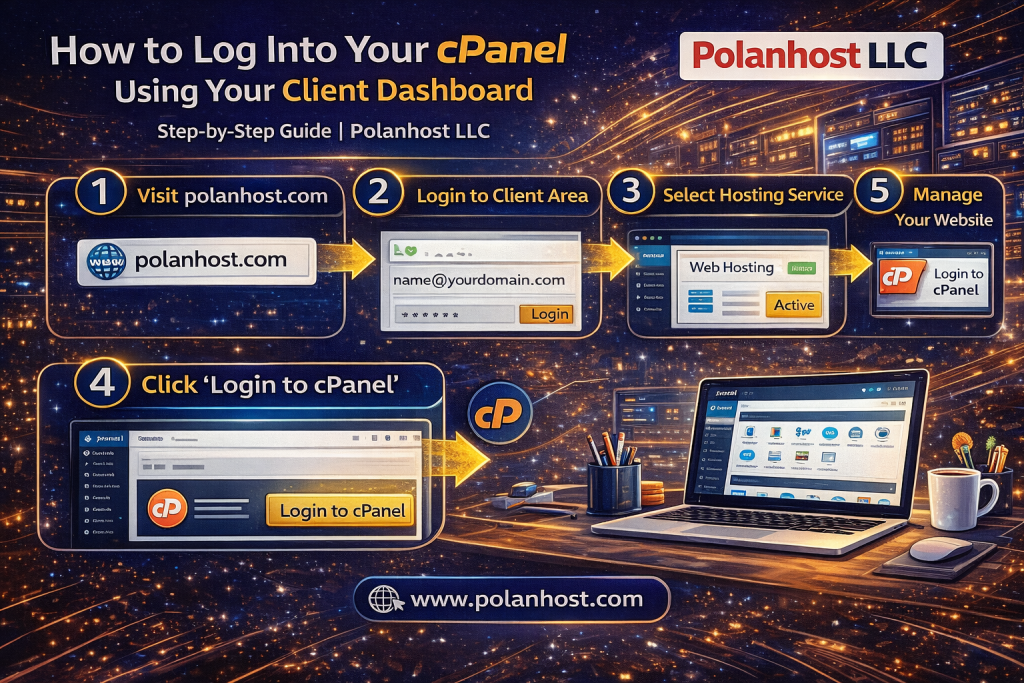
This guide explains how to log into your cPanel using your client dashboard, step by step.
What Is cPanel?
cPanel is a web-based control panel that allows you to manage every aspect of your hosting account, including:
- Website files and folders
- Email accounts
- Domains and subdomains
- Databases (MySQL)
- SSL certificates
- Backups and security settings
It is one of the most widely used and beginner-friendly hosting control panels.
What Is the Client Dashboard?
The client dashboard (also called client area) is your main account panel provided by your hosting company. From here, you can:
- View active hosting services
- Manage billing and invoices
- Access support tickets
- Log into cPanel without a password
Using the client dashboard is recommended because it is secure and direct.
Why Log Into cPanel Through the Client Dashboard?
Many users prefer this method because it:
✔ Eliminates the need to remember cPanel URLs
✔ Prevents login errors
✔ Provides one-click access
✔ Improves account security
✔ Is beginner-friendly
Step-by-Step Guide: How to Log Into cPanel Using Your Client Dashboard
Step 1: Visit Your Hosting Provider’s Website
Open your browser and go to your hosting provider’s official website.
For Polanhost LLC users:
👉 https://www.polanhost.com
Step 2: Log In to Your Client Account
Click on Login or Client Area and enter:
- Your registered email address
- Your account password
Once logged in, you’ll be redirected to your client dashboard.
Step 3: Select Your Hosting Service
Inside the dashboard:
- Navigate to Services or My Services
- Click on your active hosting plan
This will open your hosting management page.
Step 4: Click on “Login to cPanel”
On the hosting management page, locate the cPanel Login or Login to cPanel button.
Click it, and you will be:
- Automatically logged into cPanel
- Redirected without entering a username or password
Step 5: Access Your cPanel Dashboard
Once logged in, you can now:
- Upload website files
- Install WordPress
- Create email accounts
- Manage domains and SSL
- Monitor website resources
Your cPanel is now fully accessible.
Alternative Ways to Access cPanel
Although the client dashboard is recommended, you can also log in via:
https://yourdomain.com/cpanel
or
https://serverIP:2083
However, these methods require your cPanel username and password.
What If You Can’t Find the cPanel Login Button?
If you don’t see the cPanel login option:
- Ensure your hosting service is active
- Try refreshing the page
- Check under Hosting Details
- Contact customer support for assistance
Polanhost LLC support can help you regain access quickly.
Common cPanel Login Issues and Fixes
❌ Wrong Login Details
✔ Use client dashboard login instead
❌ Page Not Loading
✔ Clear browser cache
✔ Try another browser
❌ SSL Warning
✔ Ensure SSL is installed
✔ Use https:// URL
Tips to Secure Your cPanel Account
To keep your hosting secure:
- Use a strong account password
- Enable two-factor authentication (if available)
- Avoid sharing login details
- Always log out on public devices
Why Polanhost LLC Makes cPanel Access Easy
Users choose Polanhost LLC because it offers:
- Licensed cPanel hosting
- One-click cPanel access
- Secure client dashboard
- Beginner-friendly interface
- Reliable customer support
Conclusion
Logging into your cPanel using your client dashboard is the easiest, safest, and most recommended method. Whether you are managing a blog, business website, or reseller account, this approach ensures smooth and secure access to your hosting tools.