If your website is hosted with Polanhost LLC and built using WordPress, accessing your WordPress dashboard is the first step to managing your site content, themes, plugins, and settings. Many beginners often ask how to locate and log into their WordPress admin area.

This guide explains how to log into your WordPress dashboard when hosted on Polanhost LLC, step by step.
What Is the WordPress Dashboard?
The WordPress dashboard (also called the admin panel) is the control center of your WordPress website. From the dashboard, you can:
- Create and edit posts and pages
- Install themes and plugins
- Manage users and comments
- Configure website settings
- Monitor performance and security
Requirements Before Logging In
Before you can log in, ensure that:
- Your domain is properly hosted on Polanhost LLC
- WordPress has been installed on your hosting account
- You have your WordPress username and password
Method 1: Log In Using Your Website URL (Recommended)
This is the most common and easiest method.
Step 1: Open Your Browser
Launch any browser (Chrome, Edge, Firefox, etc.).
Step 2: Enter Your WordPress Login URL
Type one of the following URLs in the address bar:
https://yourdomain.com/wp-admin
or
https://yourdomain.com/wp-login.php
Replace yourdomain.com with your actual domain name.
Step 3: Enter Your Login Details
On the WordPress login page:
- Enter your username or email address
- Enter your password
- Click Log In
You will be redirected to your WordPress dashboard.
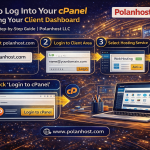
Method 2: Log In Through Polanhost cPanel
If you forget your WordPress login URL or want quick access, Polanhost LLC provides an easy way through cPanel.
Step 1: Log In to Your Polanhost Client Area
Visit:
👉 https://polanhost.com
Log in to your client account and access cPanel.
Step 2: Open WordPress Manager or Softaculous
Inside cPanel:
- Go to WordPress Manager or Softaculous Apps Installer
- Locate your installed WordPress site
- Click Admin Login
This will automatically log you into your WordPress dashboard without entering a password.
Method 3: Logging In After WordPress Installation
If you recently installed WordPress using cPanel:
- Login details are sent to your email address
- Use those credentials on the WordPress login page
Always change your password after first login for security.
What If You Forget Your WordPress Password?
If you forget your password:
- Go to:
https://yourdomain.com/wp-login.php
- Click Lost your password?
- Enter your email address
- Reset your password via email
Alternatively, you can reset your password through cPanel → phpMyAdmin.
Common Login Issues and Fixes
❌ Page Not Loading
✔ Ensure your domain is active
✔ Confirm WordPress is installed
✔ Clear browser cache
❌ Incorrect Password Error
✔ Reset password using email
✔ Check caps lock and spelling
❌ SSL Issues
✔ Ensure SSL is installed
✔ Use https:// instead of http
Polanhost LLC provides free SSL, which helps avoid login security warnings.
Tips to Secure Your WordPress Dashboard
To keep your WordPress site safe on Polanhost LLC:
- Use a strong password
- Enable SSL (HTTPS)
- Install security plugins
- Change default admin username
- Limit login attempts
Why Polanhost LLC Is Ideal for WordPress Hosting
Customers choose Polanhost LLC because it offers:
- WordPress-friendly servers
- Licensed cPanel access
- Easy WordPress installation
- Free SSL certificates
- Reliable uptime and speed
- Responsive customer support
Conclusion
Logging into your WordPress dashboard when hosted on Polanhost LLC is quick and straightforward. Whether you use the direct login URL or access it through cPanel, Polanhost provides a beginner-friendly environment to manage your website with ease.