
Managing your website files shouldn’t be complicated. With Polanhost LLC, you can easily access your website’s File Manager directly from your Client Dashboard without needing FTP software or technical skills.
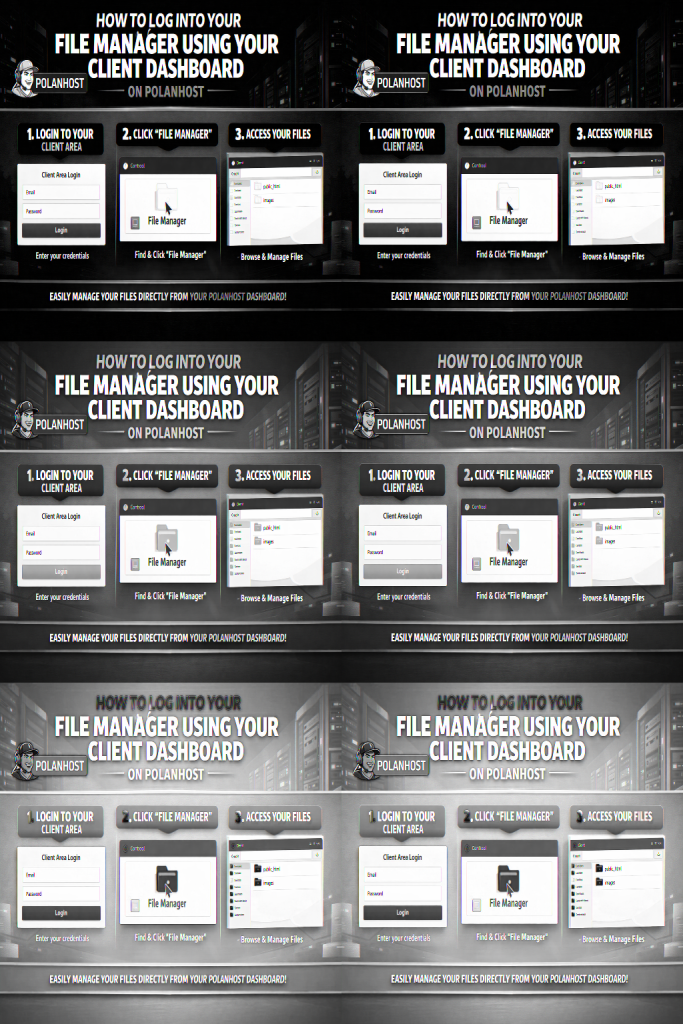
In this guide, you’ll learn how to log into your File Manager using your Polanhost Client Dashboard, understand what you can do inside File Manager, and get helpful tips for safe file management.
What Is the Polanhost Client Dashboard?
The Polanhost Client Dashboard is a secure portal where customers can manage all their services, including:
- Web hosting plans
- Domain names
- Website files and databases
- Email accounts
- Billing and support tickets
From the dashboard, you can quickly access cPanel, which contains the File Manager tool.
What Is File Manager in cPanel?
File Manager is a built-in cPanel tool that allows you to:
- Upload and download website files
- Edit files like HTML, PHP, and CSS
- Create or delete folders
- Manage images, scripts, and backups
- Fix errors without using FTP
It’s perfect for beginners and professionals alike.
Requirements to Access File Manager on Polanhost
Before you begin, make sure you have:
- An active hosting plan with Polanhost LLC
- Valid Client Dashboard login details
- A stable internet connection
No extra software is required.
Step-by-Step: How to Log Into Your File Manager Using Your Client Dashboard on Polanhost
Step 1: Log Into the Polanhost Client Area
Visit the Polanhost Client Area and log in using the email address and password you used during registration.
Once logged in, you’ll be redirected to your dashboard.
Step 2: Open Your Hosting Service
From your Client Dashboard:
- Click on “Services” or “My Services”
- Select the hosting package linked to your website
This opens the service management page.
Step 3: Access cPanel
Inside your hosting service page:
- Click “Login to cPanel”
You’ll be logged in automatically without entering a separate password.
Step 4: Open File Manager
Once inside cPanel:
- Scroll to the Files section
- Click on “File Manager”
Your website files will now load.
Step 5: Access Your Website Files
Inside File Manager:
- Open the public_html folder to view your website files
- Other folders may contain emails, logs, or system files
⚠️ Tip: Always be careful when editing system files.
Common Tasks You Can Perform in File Manager
Using File Manager on Polanhost, you can:
- Upload website files
- Edit existing files
- Create new folders
- Delete unwanted files
- Compress and extract files
- Fix website errors quickly
Common File Manager Issues and Solutions
Cannot See Website Files
Ensure you’re inside the public_html directory.
Permission Errors
Avoid changing file permissions unless you’re sure of the correct values.
Website Down After Editing Files
Restore from backup or contact Polanhost support immediately.
Why Use Polanhost LLC for Web Hosting?
Polanhost LLC provides reliable hosting solutions with:
- Easy-to-use Client Dashboard
- Secure cPanel access
- Powerful File Manager tools
- Fast servers and high uptime
- Responsive Nigerian-based support
Conclusion
Accessing your File Manager through the Polanhost Client Dashboard is fast, secure, and beginner-friendly. Whether you’re uploading files, editing code, or troubleshooting issues, Polanhost makes website management simple.